
League teams
If you run a team in a local or district league, every fixture starts with the same admin: message the squad about the next match, chase everyone for who’s free, work out who’s playing to the team size, name a sub or two, and tell the people you’ve picked. Most captains do this across a WhatsApp group and a spreadsheet, and it’s easy to lose a reply or forget a sub.
Teams puts that whole job in one place. You keep a squad, publish a fixture, send your squad one link to say if they’re available, then pick the team and let everyone know - all without leaving ePegboard, and without giving up the WhatsApp group you already use.
This page walks the captain through the loop, start to finish. The player side - what your squad see when they tap the link, and their own Team fixtures view - has its own page.
Find it
Section titled “Find it”Open Teams from the main menu (alongside Competitions and Settings). It’s there for every club; a club that runs no league sides simply never uses it. Creating and editing teams needs organiser permission - the same permission that runs the rest of your club admin. A player without it sees the teams read-only.
Create a team
Section titled “Create a team”The Teams page lists your club’s league sides - for example Men’s 1st VIII, Ladies’ 1st, Mixed 2nd. Each team is its own side, with its own captain, squad and fixtures. A player can sit in more than one team’s squad if they play up or down.
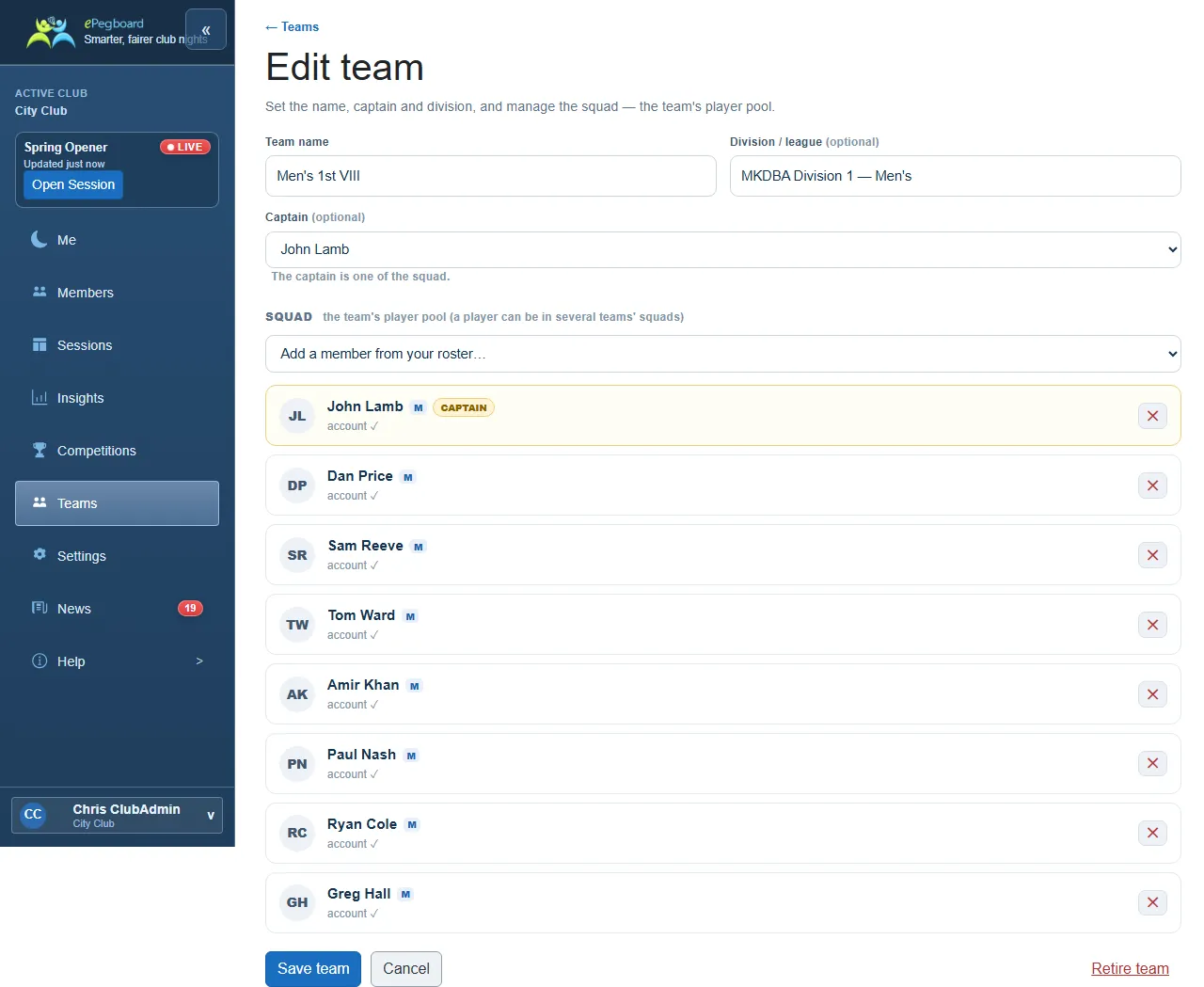
Choose + New team and fill in:
| Field | Required | Notes |
|---|---|---|
| Team name | Yes | What you call the side - for example Men’s 1st VIII. |
| Division / league | No | The division it plays in - for example MKDBA Division 1 - Men’s. Shown as a label; ePegboard doesn’t read anything into it. |
| Captain | No | Who runs the team, chosen from the squad. A label for now - it’s who the fixture is “from”; it doesn’t grant any extra permission on its own. |
Build the squad
Section titled “Build the squad”The squad is the team’s player pool - the people you pick from, fixture after fixture, across the season. Add members from your club’s existing roster with + Add member; remove anyone with the cross. You only build it once, then reuse it all season - editing it whenever someone joins or leaves the side.
Some squad members will already have their own ePegboard account (shown as account); others won’t yet (no account yet). That’s fine - you don’t need everyone signed up to publish a fixture. The availability link handles the sign-up for you (see Send one link below).
Publish a fixture
Section titled “Publish a fixture”Open a team to reach its fixtures hub - the list of upcoming and past fixtures, and where you’ll come back to over the week. Choose + New fixture and set:
| Field | Required | Notes |
|---|---|---|
| Opponent | Yes | Who you’re playing (free text). |
| Date and time | Yes | When the match is, in your club’s time zone. |
| Venue | No | Where it’s played. |
| Home / Away | Yes | Shown to the squad so they know where to turn up. |
| Players needed | Yes | How many you’re picking - defaults to 6, set it per fixture. |
| Format note | No | A free-text reminder for you and the squad - for example 3 men’s pairs, best of 3. |
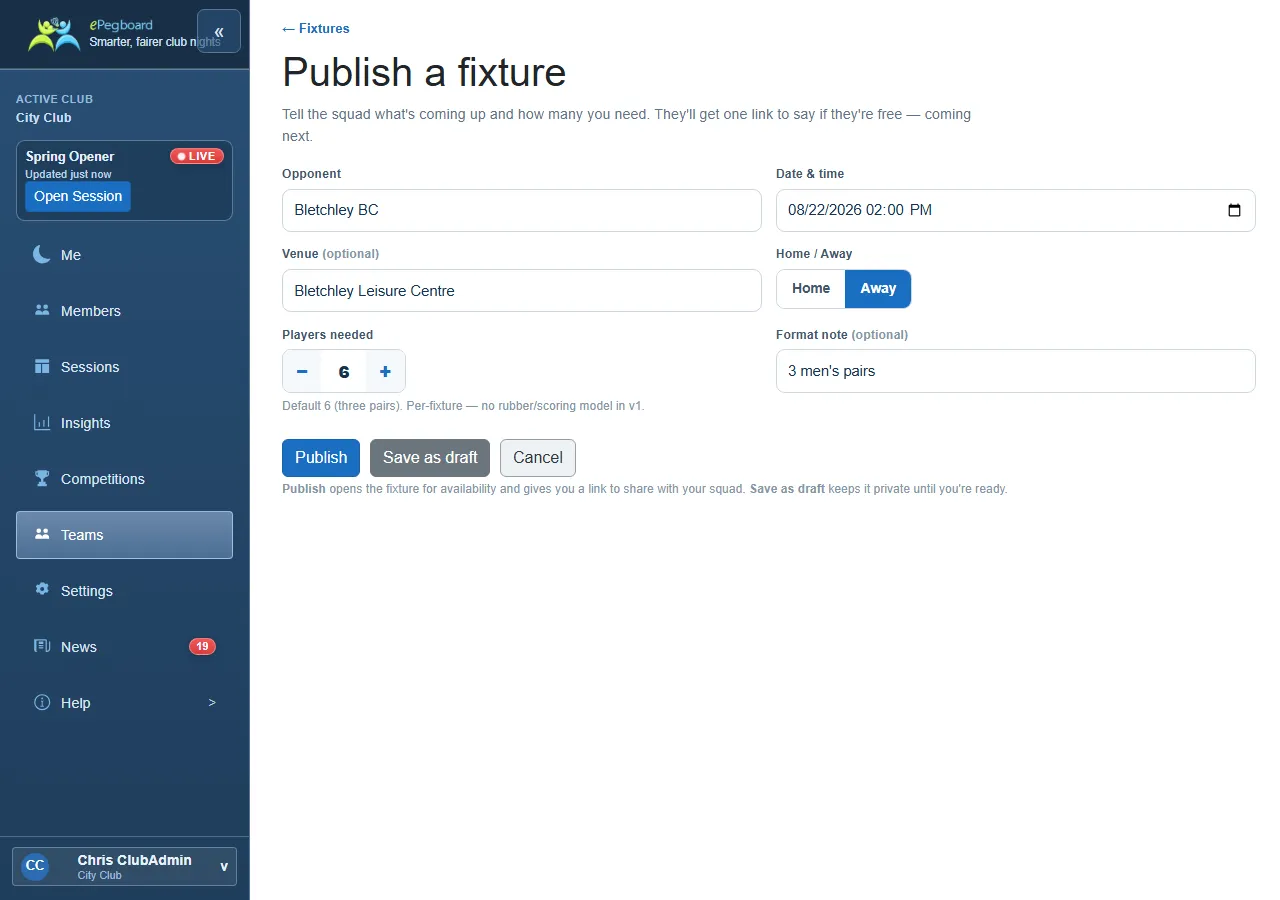
There’s no scoring or results field: the fixture records who you’re playing and who you’re picking, nothing more. Your league keeps the score.
Send one link to the squad
Section titled “Send one link to the squad”From the fixture, choose Request availability (or Share). ePegboard gives you one link and a ready-made message. Post it straight into your squad’s WhatsApp group - that’s the whole distribution job. You don’t sit and watch; replies come in over the following days.
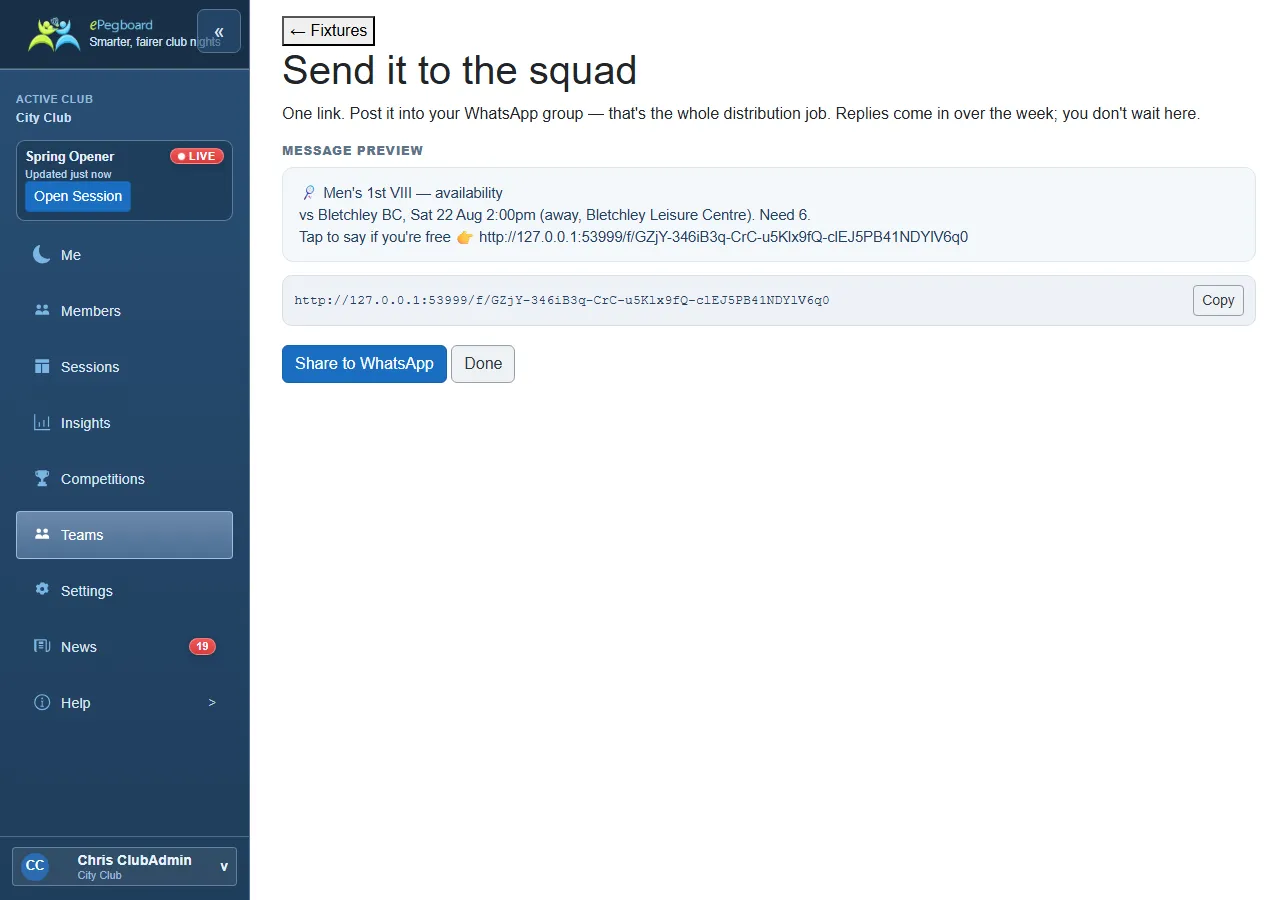
When a squad member taps the link:
- If they already have an ePegboard account, they tap I’m available or Can’t make it - done.
- If they don’t have an account yet, replying is their sign-up: they confirm which squad member they are, tick to agree, and their reply creates their account, tied to their name, rating and history at your club. No app to install, no password to invent. (See the player side for exactly what they see.)
The upshot: your squad get their own accounts as they reply, so their ratings and fixtures are theirs from then on - and you stop collecting “yep, I’m in” by hand.
See who’s available
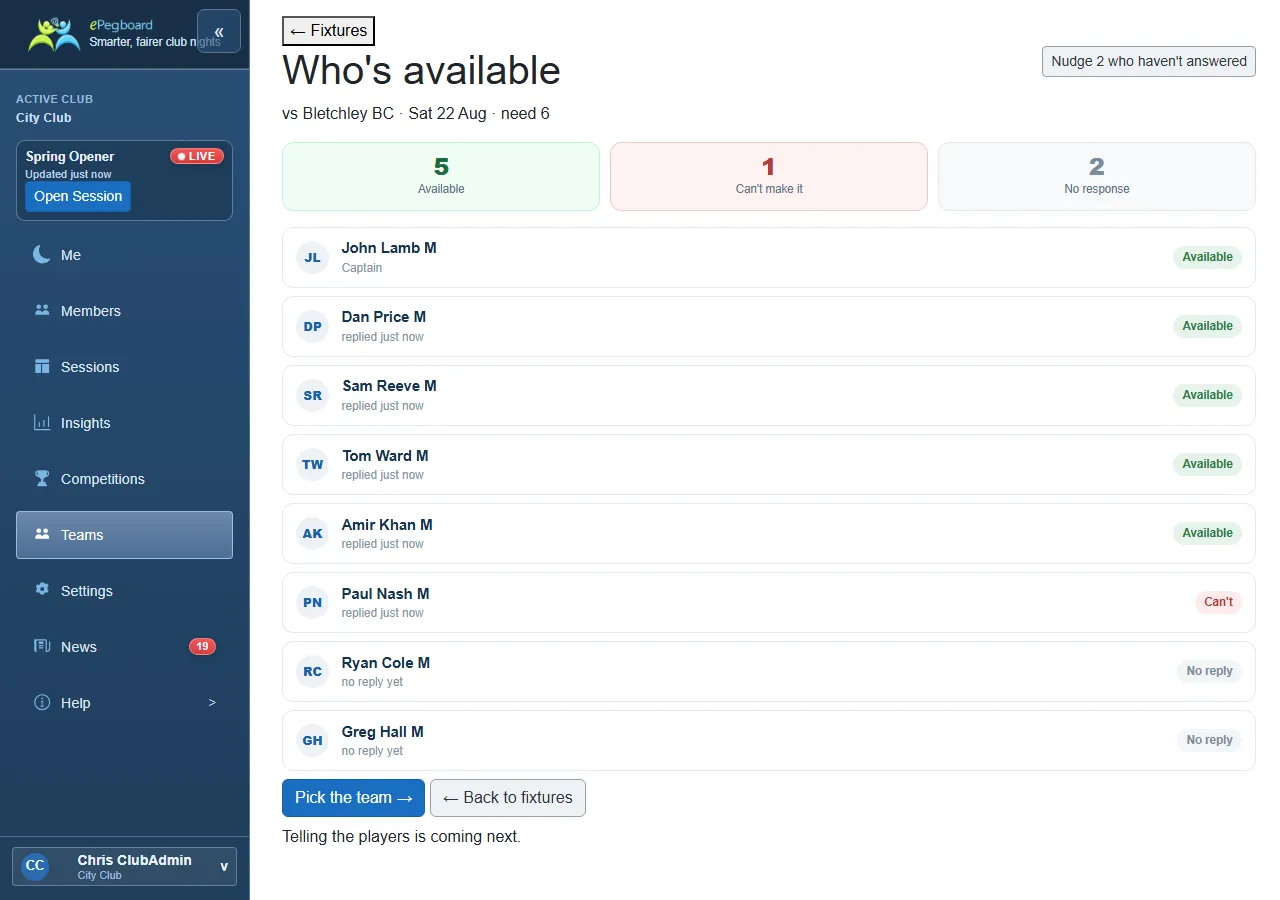
Section titled “See who’s available”Come back to the fixture whenever you like and open Availability. Every squad member shows as Available, Can’t make it, or No response, with a running count of each. If a few haven’t answered, Nudge re-posts the same link so they see it again.
Pick the team and name subs
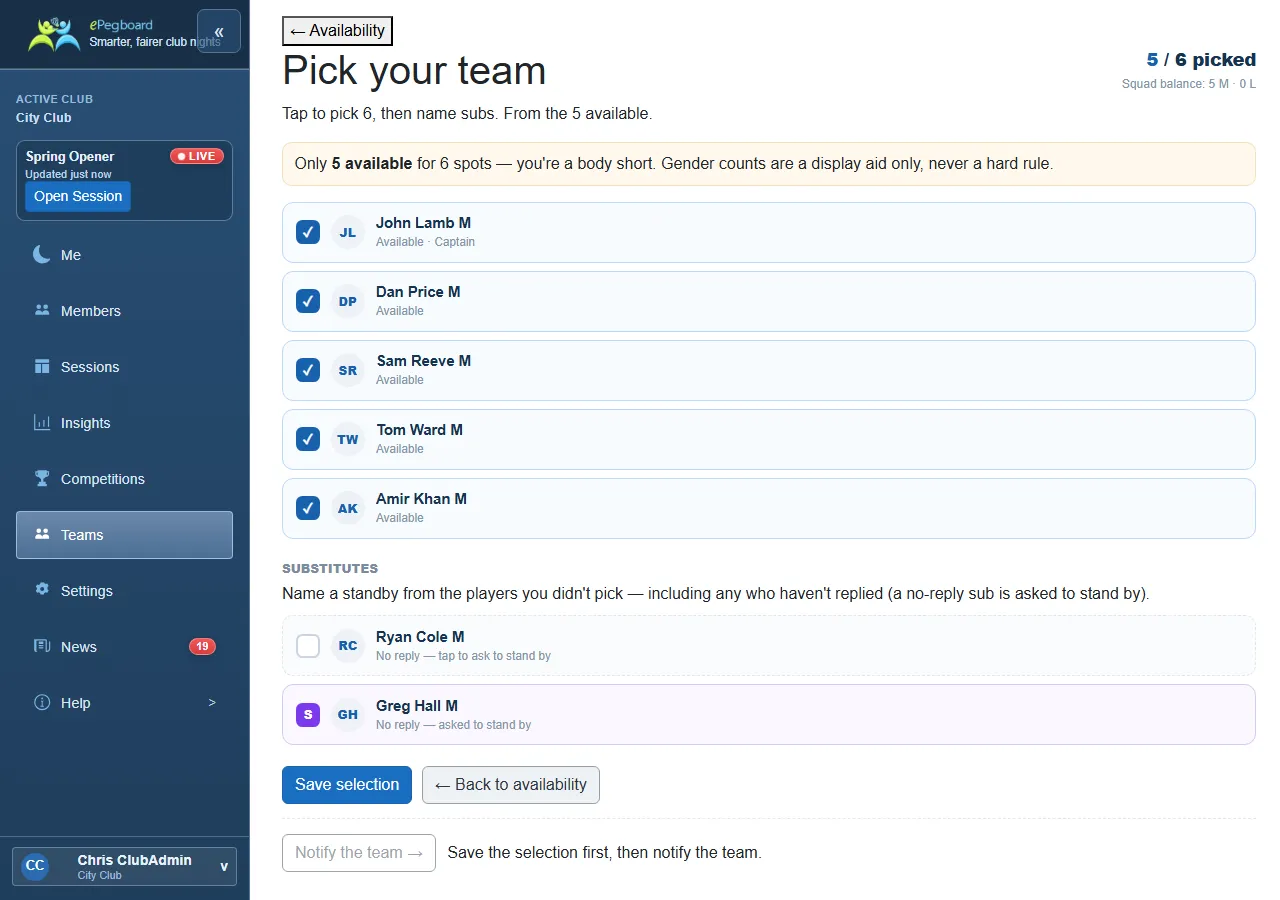
Section titled “Pick the team and name subs”When you’re ready, choose Pick the team. You select players up to the number you set for the fixture, then name any substitutes - and a standby sub can be someone who hasn’t replied yet, if you want to line one up just in case. The screen keeps a live count (4 / 6 picked) and shows the gender split of your picked side as a gentle guide - it never blocks a selection or enforces a rule. You can reopen and change the selection right up until you notify the team.
Tell the team
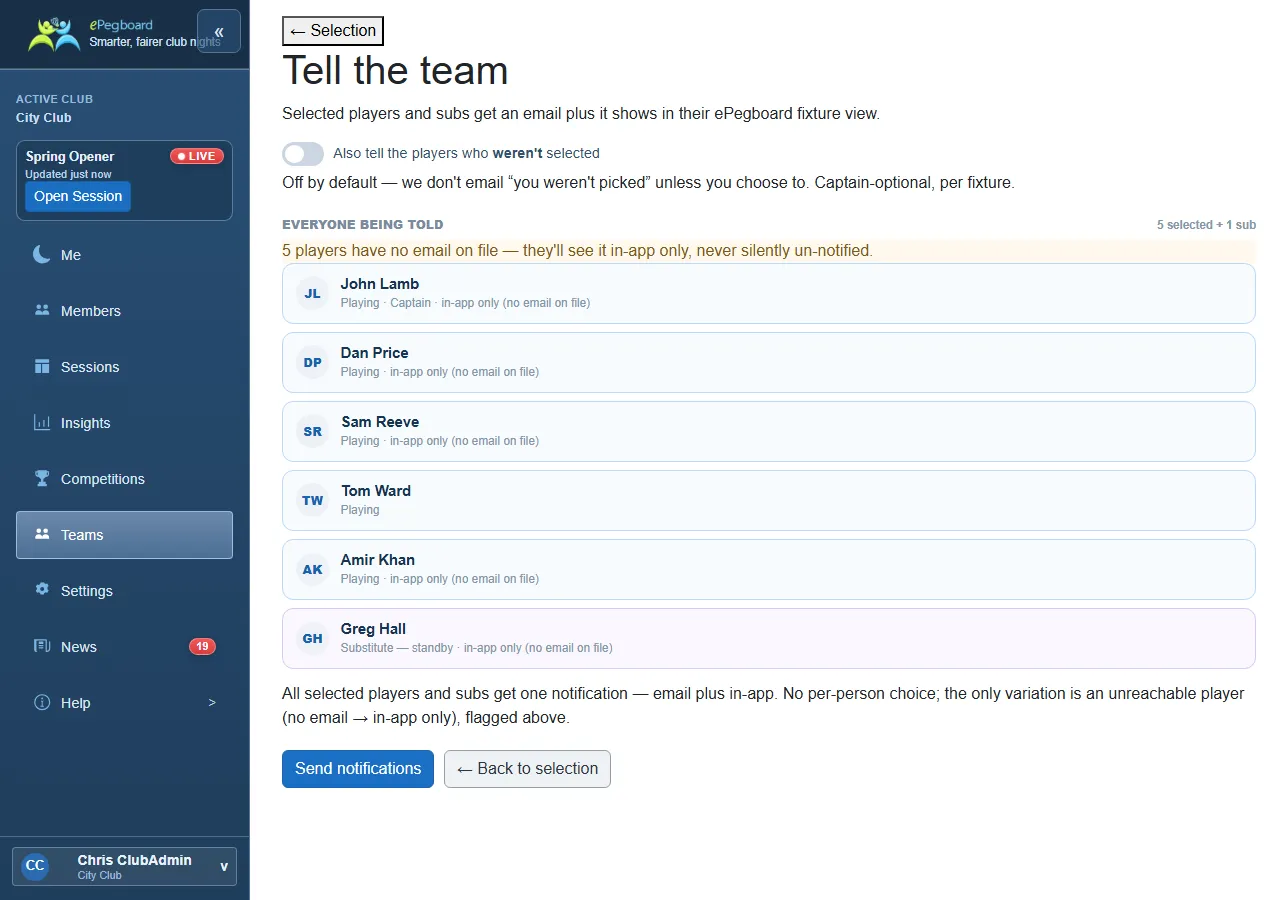
Section titled “Tell the team”Choose Notify the team and everyone selected - players and subs - gets told in one go: an email with the fixture details and their status (playing or on standby), and it shows in their ePegboard fixture view too. If someone has no email on file, they still get it in-app, flagged for you so no one is left unaware.
By default, the players you didn’t pick aren’t emailed - they’re volunteers, and “you weren’t picked” isn’t a message most captains want to send automatically. There’s an optional per-fixture toggle to tell them as well if you’d rather.
That’s the loop: create the team, publish the fixture, send one link, pick the team, tell everyone - all from the fixtures hub, all season.
What the players see
Section titled “What the players see”Your squad don’t need a walkthrough - it’s a couple of taps. But if you want to know exactly what lands on their phone (the availability reply, their Team fixtures list, and how they withdraw if their plans change), the Team fixtures page covers the player side.
Who can do what
Section titled “Who can do what”| Action | Owner | Admin | Player |
|---|---|---|---|
| View teams and fixtures | Yes | Yes | Yes |
| Create or edit a team and squad | Yes | Yes | No |
| Publish a fixture, request availability | Yes | Yes | No |
| Pick the team and notify | Yes | Yes | No |
- Team fixtures (for players) - what your squad see when they tap the link, their fixtures list, and how they withdraw.
- Members - your club roster, which the squad is built from.
- Share your join code - the six characters your members use to connect their own accounts, so a squad can reply to fixtures in one tap.