
Members
The Members page is your club roster and where you manage the people in it. It is one page, read top to bottom: anyone waiting to connect, your club’s join code, the member list itself, and then the smaller sections for invitations and loose ends.
People waiting to connect
Section titled “People waiting to connect”When a player uses your join code, a request lands here for you to decide on. The section sits at the top of the page, and it only appears when there is something in it - no permanent empty box.
Each row tells you which of two things you are being asked to do:
- Connect - the person picked their own name off your list. Approving links their account to the member record you already hold, with all its history.
- New member - the person said they are not on your list. Approving adds them to it.
Alongside it you get the email they signed up with and when they asked, and three things you can do: Approve, Decline, or Ask.
The checks on a request
Section titled “The checks on a request”On a New member request, ePegboard checks the name against your existing roster. If it matches someone you already have, the row says so - “Dave Wilson is already on your list. Approving adds a second one.” - and tells you what to do if it turns out to be the same person.
It is a warning, not a block. Two people of the same name is ordinary in a club of any size, so Approve works exactly as it did. And there is no tick the other way: a row with no warning does not mean ePegboard has cleared it, because the judgement is yours.
Asking before you decide
Section titled “Asking before you decide”When you cannot tell who somebody is - the two-Dave-Wilsons case above is the usual one - Ask is the third option, and it sits next to the other two rather than behind a menu. It opens a box for your question and emails it to them.
Their reply comes back to your own inbox, not into ePegboard, so watch for it there. Nothing is held up in the meantime: the request stays in the queue with Approve and Decline still live, so you can decide at any point without waiting for an answer.
Once you have asked, the row is marked Asked <date> by <name> and shows the question you sent, so a week later you know what was asked before you read anything into the silence.
Recently decided
Section titled “Recently decided”Once you approve or decline, the request leaves the queue. Recently decided below it is a collapsed line showing what has been decided in the last 14 days - expand it for who, whether they were connected or declined, when, and by which organiser. Up to ten are listed; if there were more, it says so.
It is mostly for clubs with more than one organiser, and for the single organiser wondering whether they already dealt with something.
How you find out
Section titled “How you find out”Two things tell you people are waiting, so you do not have to keep checking:
- A count on the Members link in the club menu, for as long as anyone is waiting.
- An email, to everyone at the club who can manage members. It follows a request that has been waiting a few minutes - in practice within about twenty minutes of the first one arriving - and gives the number waiting, how long the longest has been, and a link straight to this page.
Players are told the outcome either way, as soon as you decide. Approving emails them to say they are connected, with a link to the club. Declining emails them to say the request was not approved and that nothing has changed on their account - it gives no reason, because you are not asked for one, and it suggests they have a word with you, since a decline is often a mix-up rather than a no.
Those two go out whether or not the player’s address is confirmed: somebody who signed up minutes before asking has not had time.
Your club join code
Section titled “Your club join code”Your club’s join code is six characters - letters and numbers, like XPK M4T - and it is what you hand out to anybody who wants to connect. One code covers your whole club, and it keeps working until you replace it.
The same card appears in two places, so you can reach it from wherever you are: on this page under the toolbar, and as the first section of Settings. Either one gives you the code and the same three actions. The Settings one also shows whether the code is on your club-night board, with a link to change it.
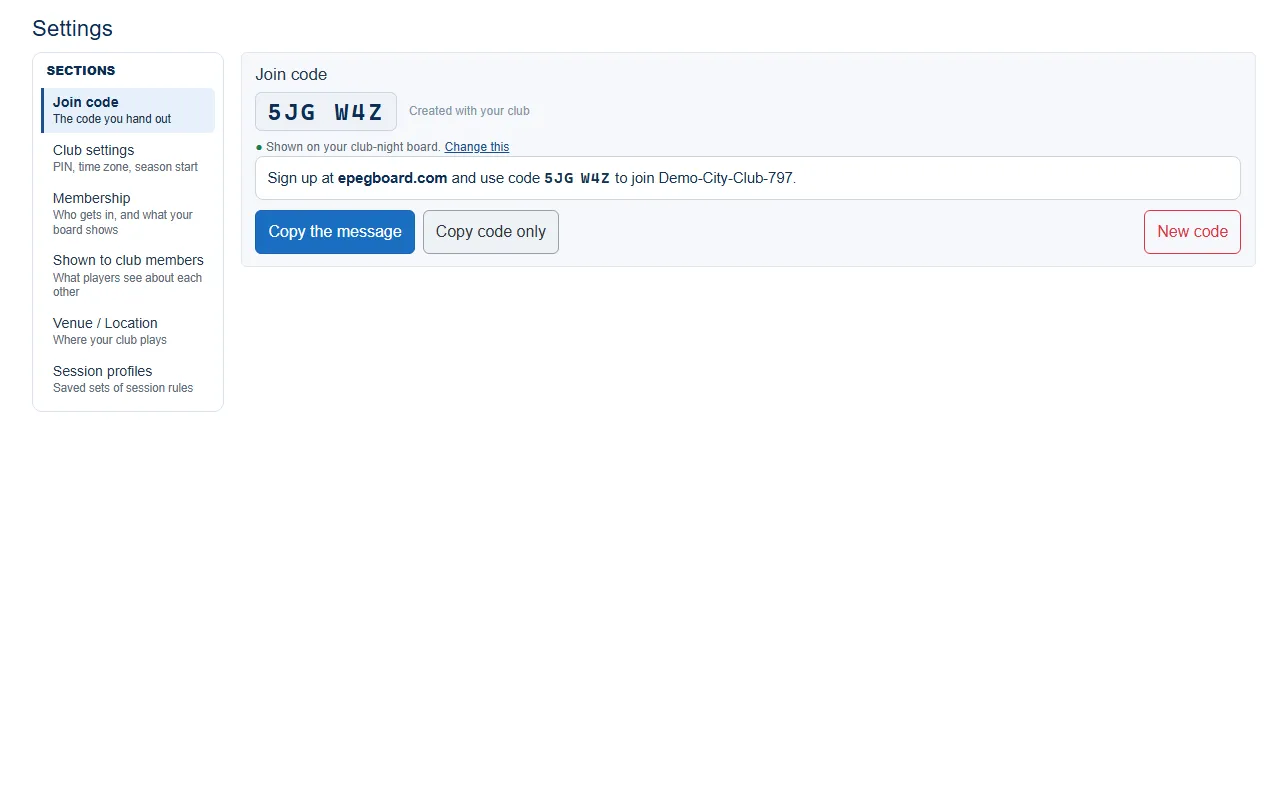 The Settings card. The one on the Members page is the same but for the board-display line.
The card gives you the code, and the sentence to send:
Sign up at epegboard.com and use code XPK M4T to join [your club].
Copy the message takes the whole sentence, which is the useful thing - the address matters as much as the code. Copy code only takes the six characters on their own.
By default your club-night board shows this code too, so a player standing in the hall can read it off the screen. You can turn that off, and turn tonight’s session code on instead, in Settings under Membership.
Replacing the code
Section titled “Replacing the code”New code creates a fresh one and stops the old one working immediately. Use it if the code has been shared somewhere you would rather it was not. Be aware that anything you have already sent your club - the message in the group chat, an email - stops working at the same moment, so send the new one out.
Who gets approved, and who just gets in
Section titled “Who gets approved, and who just gets in”Two separate settings decide what happens when somebody uses the code, and most clubs answer them differently. Both live in Settings under Membership:
- Joining as a new member - for someone your club has no record of.
- Connecting to a member you already have - for someone already on your list who wants their own account.
Each offers the same three answers, worded for its own question: People can ask, and you approve; only you do it, with no self-service at all; or people do it themselves with no approval needed. A club that has never touched either setting is on ask, and you approve for both - which is why requests arrive in the queue above rather than people simply appearing.
Keeping track
Section titled “Keeping track”The toolbar shows an “X of Y connected” count, so you can see how far your club has got. It climbs as people use the code.
Picked the wrong name when connecting? Open that member’s profile and Unlink login - the name can then be connected again, and nothing is lost.
The join code replaced the old shareable roster link, which showed every member’s name to anyone it was forwarded to. Links already sitting in club group chats still open, and now tell the player to ask you for the code.
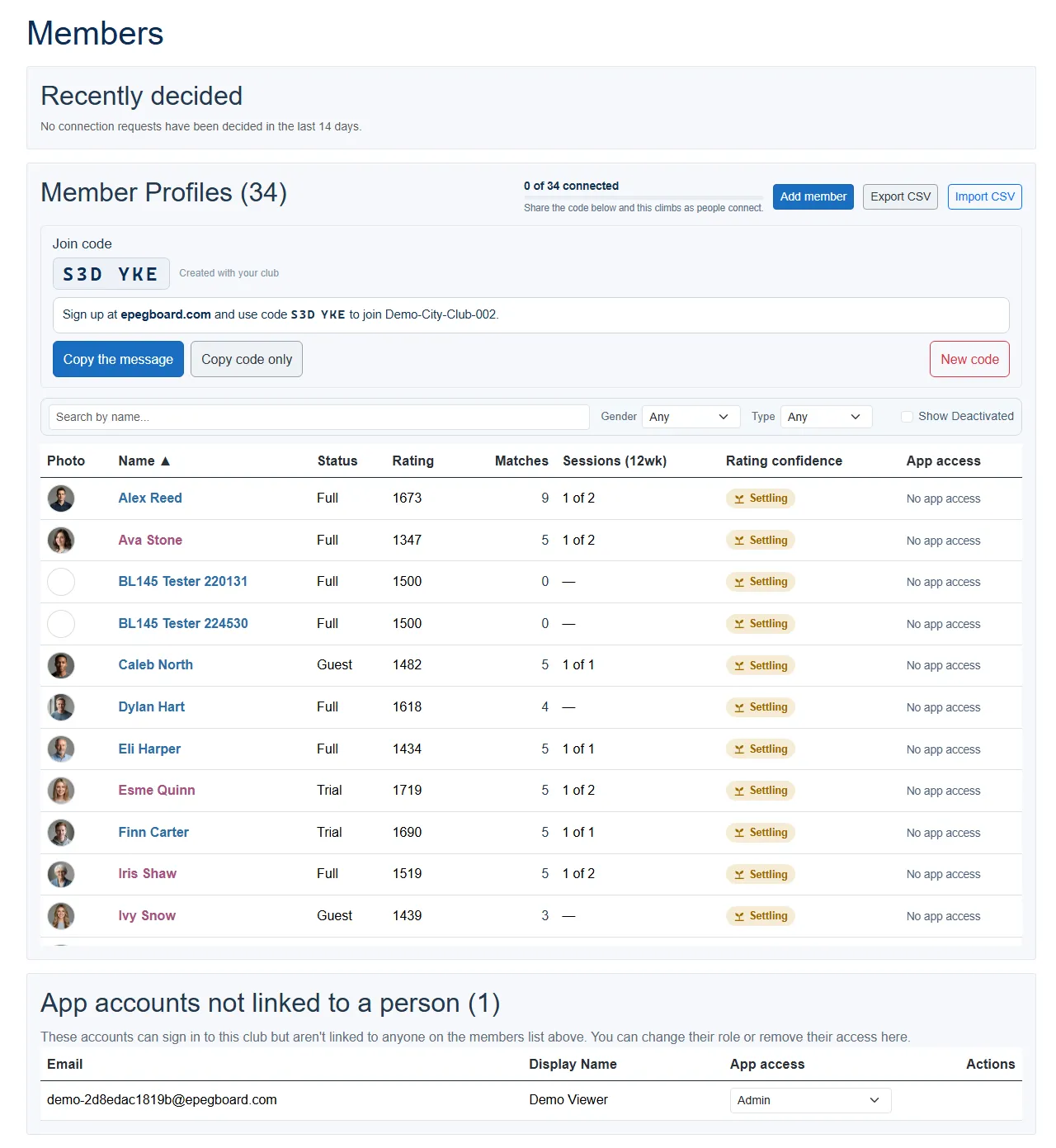
The member list
Section titled “The member list”Each row shows:
| Column | What it is |
|---|---|
| Photo | Their photo, or their initials. |
| Name | Click the row to open their profile. |
| Status | Their membership type - Full, Trial or Guest - plus a Deactivated badge if they have been deactivated. |
| Rating | Their current rating. |
| Matches | Rated games played, all time. |
| Sessions (12wk) | Sessions attended out of sessions held, over the last 12 weeks. Counted from their first appearance in that window, so someone who joined three weeks ago reads as 3 of 3, not 3 of 12. |
| Rating confidence | Whether the rating is still settling or has settled. |
| App access | Whether they can sign in, and at what role - see below. |
Every column except Photo sorts - click the header. On a narrow screen the page keeps Name, Status, Rating and Sessions and hides the rest.
Below the toolbar you can also:
- Search by name, and filter by gender or membership type.
- Show or hide deactivated members with the Show Deactivated toggle (they are hidden by default).
Matches and Sessions (12wk) answer different questions. Matches is how much badminton someone has played here since they joined; Sessions is whether they are still turning up.
Adding a member
Section titled “Adding a member”Add member opens a form:
| Field | Required | Notes |
|---|---|---|
| Name | Yes | The member’s name. |
| Membership | Yes | Full, Trial or Guest. Defaults to Full. Drives pricing. |
| Gender | Yes | Female or Male. Used by the picker for mixed games. |
| Plays | No | On by default. Untick for a non-playing organiser, secretary or helper - they stay on the list but are never picked for a game. |
| Rating | No | Pick a starting tier (below) or enter a custom number. Defaults to 1500. |
| No | For contact, and to invite them to the app. | |
| Phone | No | For contact. |
| Profile photo | No | JPG, PNG or WEBP, up to 2 MB. Shows in the sign-in gallery and on their profile. |
Fill in an email and the form offers Invite <name> to the app with a role to give them - see Add another organiser.
Starting tiers
Section titled “Starting tiers”The Rating field offers six named tiers, or a custom number:
| Tier | Starting rating |
|---|---|
| Beginner | 400 |
| Recreational | 800 |
| Novice | 1100 |
| Intermediate | 1500 |
| Advanced | 1900 |
| Expert | 2300 |
If you are unsure, leave it at Intermediate (1500) and the rating will settle over the first few sessions. See How ratings work.
Member profiles
Section titled “Member profiles”Clicking a member’s row opens their profile, which is both where you read about them and where you manage them. It has tabs:
- Overview - rating, membership, status, contact details, and their app access.
- Activity - a timeline of their sessions and rating changes.
- Sessions - the sessions they have played in.
- Rating - their current rating and a chart of how it has progressed (once they have a couple of results).
- Partnership - who they have partnered, how often, and how those pairings have done.
- Opponents - who they have played against, how often, and the head-to-head record.
Edit details opens nearly the same form as Add member. Two fields are added:
- Member since - an optional join date (shown for Full members).
- Rating override - a member’s rating is auto-adjusted by their game results, so it is normally read-only. If you need to set it by hand, use Override rating to enter a value and an optional reason. Use this sparingly; the system manages ratings on its own.
One is missing: Plays is only on the Add form. To change it afterwards, use the Plays switch on the profile itself, alongside the other manage controls.
Deactivating, reactivating and deleting
Section titled “Deactivating, reactivating and deleting”Deactivate member hides someone who has left, without losing anything - their history, ratings and stats are all kept, and they still count in partnership and opponent records. Turn on Show Deactivated to see them, and Reactivate member to bring them back.
Delete is different, and stronger: it removes the person from the list, the pickers and every report and export. Their past games are kept. Deleted people appear in their own Deleted people section, revealed by the show-deleted toggle, each with a Restore button. Restoring brings the person back to the list but does not restore app access - re-invite if they need it.
Neither deactivating nor deleting removes an app login on its own. To take someone’s access away, use Remove access on their profile.
App access
Section titled “App access”The App access column shows one of three things, and they are deliberately different:
- A role badge - ★ Owner, Admin or Player - for someone who can sign in now.
- “<role> · invite pending”, muted, for an invite that has been sent and not accepted. No access until they accept.
- No app access.
Most people get access by using the join code. To hand someone a specific role instead, open their profile and use Invite to app. The roles, the invite flow, changing a role, removing access and restoring it are all on Add another organiser.
Two smaller sections sit at the foot of the page when they have anything in them: Pending invitations (invites sent and not yet accepted, each with Revoke) and App accounts not linked to a person (accounts with access to your club that are not attached to anyone on the list).
Import and export
Section titled “Import and export”- Import CSV loads a roster in bulk. See Import your roster for the format.
- Export CSV downloads the current list (respecting any search or filter) - name, membership, gender, status, rating, last played, sessions, games, wins, win %, email, phone, linked login, role and member ID.
The export’s Linked Login column is the internal account id for anyone who has connected, and is blank for everyone else. Role is their access role, spelled the same way as on screen - except that someone with no login exports as - rather than the “No app access” the column shows you.
Who can do what
Section titled “Who can do what”| Action | Owner | Admin | Player |
|---|---|---|---|
| View members and profiles | Yes | Yes | Yes |
| Add, edit, deactivate, delete members | Yes | Yes | No |
| Approve or decline people waiting to connect | Yes | Yes | No |
| Invite to app, change roles, remove and restore access | Yes | Yes | No |
| See and replace the club join code | Yes | Yes | No |
| Export CSV | Yes | Yes | Yes |
| Import CSV | Yes | Yes | No |