
Set up your session profiles
A session profile is a saved set of defaults for a club night: which courts you play on, the scoring rules, the costs, how the picker behaves and how the tablet behaves in kiosk mode. Every session you create starts from a profile, so you set these once and reuse them. Most clubs need one profile; you can keep several if you run different kinds of night (say a busy main session and a quieter junior night).
When you create your club, ePegboard gives you a starter profile called Default with sensible values, so you can run a night straight away and adjust later.
Where profiles live
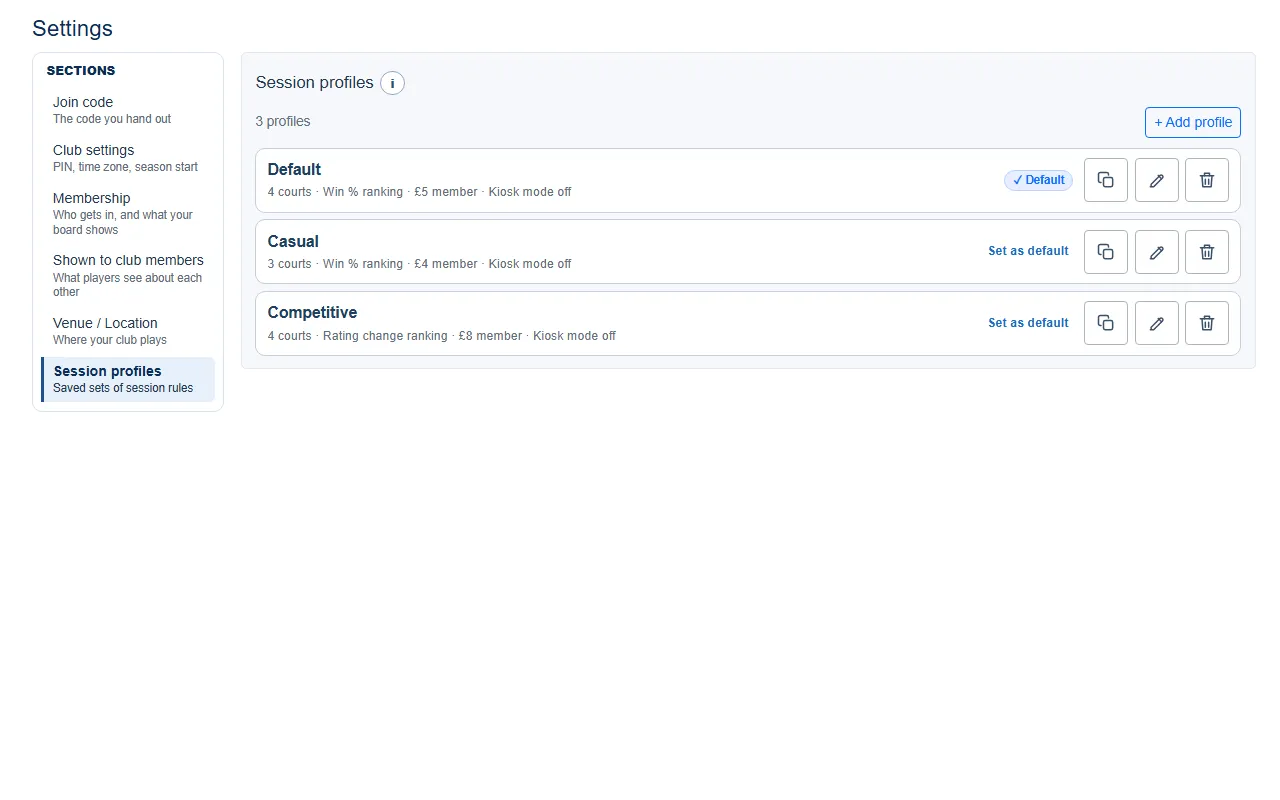
Section titled “Where profiles live”Open Settings from the menu. The page opens on a section list - Join code, Club settings, Membership, Shown to club members, Venue / Location, Session profiles - and shows one section at a time, so you go straight to the part you came for instead of reading the whole screen. Choose Session profiles to see every profile you have.
Each row shows the profile’s name and a one-line summary (courts, ranking method, member cost, kiosk state). The club default carries a Default badge - it’s the profile used unless you pick another when you start a session. On the other rows, Set as default makes that one the default instead.
Only owners and admins can change profiles. Everyone else sees the list read-only, with each row opening a view-only copy.
Creating, copying and deleting profiles
Section titled “Creating, copying and deleting profiles”The card manages the list itself; editing a profile happens on its own page (below).
- + Add profile - opens a new profile page from the defaults. It isn’t created until you Save profile.
- Copy (the copy icon on a row) - duplicates that profile as “Copy of …”, a quick way to make a variant.
- Delete (the bin icon) - removes that profile. Available once you have more than one; a short confirm guards it, and deleting the current default promotes another profile automatically.
Editing a profile
Section titled “Editing a profile”Choosing a row (or its pencil Edit icon) opens that profile on its own page, with one Save scoped to this profile. An On this page section list down the side shows one group at a time; unsaved changes are flagged, and you’re warned before leaving with edits in flight.
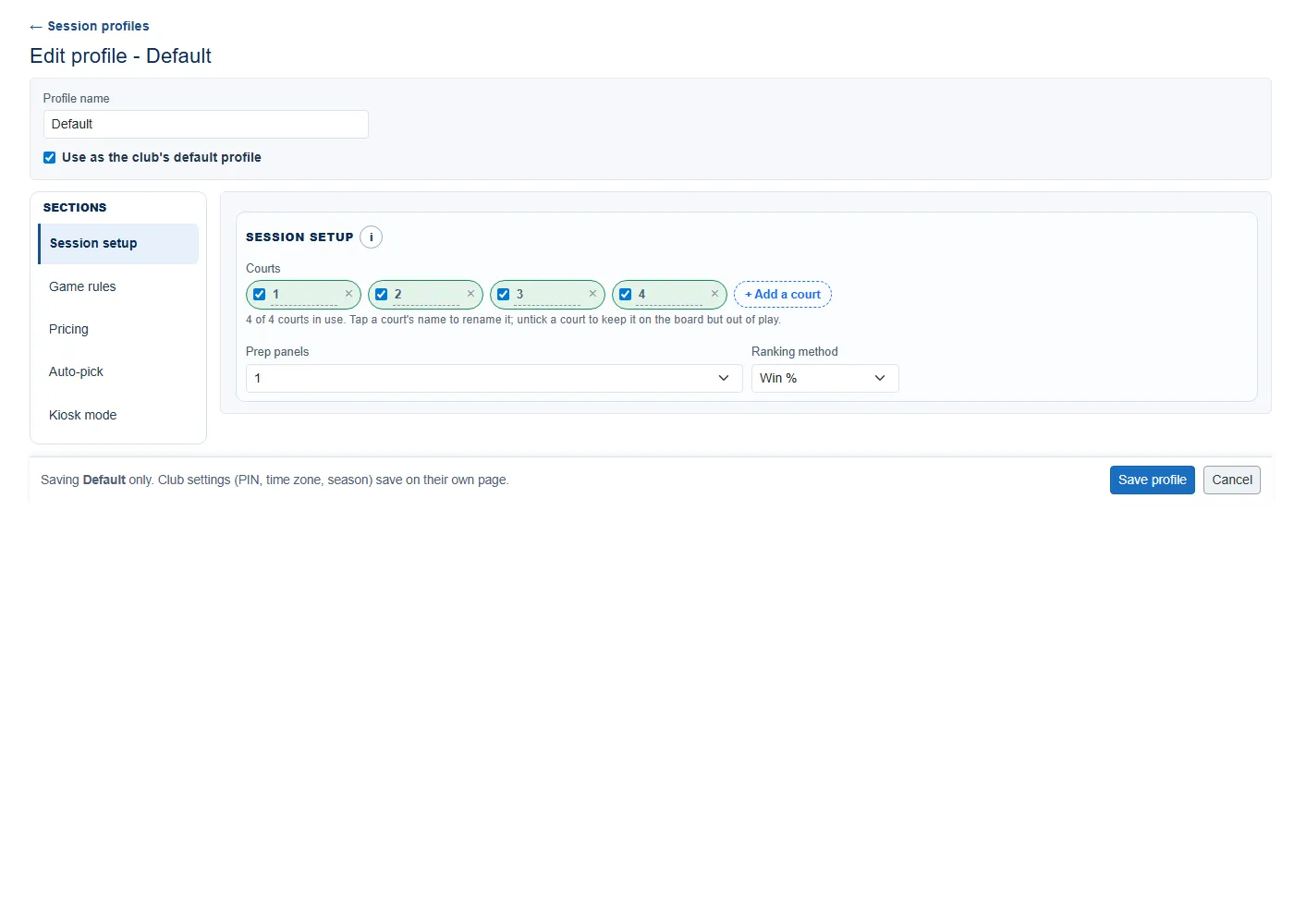 Editing a profile. The footer is a reminder that this Save covers the profile only - the PIN, time zone and season start live on their own page.
At the top, give the profile a clear name (“Thursday club night”, “Junior session”) so it’s easy to pick when you create a session, and tick Use as the club’s default profile if this should be the one new sessions start from. Then work through the groups:
Session Setup
Section titled “Session Setup”- Courts - the list of courts this profile plays on, one row each. A row carries the court’s name and a tick for whether it’s in use. Tap a name to change it: courts are named, not just numbered, so the board can match your hall’s signage - “1”, “3”, “Hall A” - up to 12 characters each, and up to 24 courts. + Add a court adds another, named with the next number for you. There’s no separate “how many courts” box: the list is the count, and a line beneath it reads N of M courts in use.
- Removing a court - the × on a row deletes that court, and this page is the only place you can. It’s kept to the profile because courts are identified by their position in the list, so removing one mid-session would shuffle the others under a live game. During a night you untick a court instead, which keeps it on the board but out of play. You can’t remove the last court.
- Prep panels - how many games you stage ahead: the next game (1), the next two (2) or the next three (3). Most clubs want 1. See The game picker for when more helps.
- Ranking method - how the leaderboard orders the night: Win % (most wins on top) or Rating Change (rewards players who beat expectations).
Game Rules
Section titled “Game Rules”- Game over score - the score a game is played to (for example 21).
- Maximum score - the hard cap if a game goes to deuce (for example 30). It cannot be lower than the game-over score.
- Score entry - where a score is captured when a game ends: Side panel (default) keeps the courts moving, or Popup when a game finishes asks for the score immediately. See Entering scores.
Pricing
Section titled “Pricing”What each type of attendee pays for the night. These feed the Payments tab and reports; ePegboard records what is owed and paid, it does not take payment.
- Full member cost
- Trial member cost
- Guest cost
Auto-Pick
Section titled “Auto-Pick”Two optional rules that turn one of the picker’s soft preferences about the waiting queue into a hard rule: force-include the first player in the queue, and limit to the first N players in the queue. For most clubs the picker works best with both off. They’re explained in full on The game picker, along with the retired prevent straight-back-on rule if you remember it from an earlier version.
Kiosk mode
Section titled “Kiosk mode”How this profile behaves when the session runs on a shared tablet in kiosk mode: which extra tabs players see, whether they can reshape a pick themselves, whether they can take courts in and out of use, and what happens when a chosen game breaks a picking rule. Running the session and the auto-pick are always on; only these choices vary. It’s covered in full on Kiosk mode and the organiser PIN.
The starting Default profile
Section titled “The starting Default profile”Your Default profile begins with:
| Setting | Value |
|---|---|
| Courts | Four courts, named 1 to 4, all in use |
| Prep panels | 1 |
| Ranking method | Win % |
| Game over / maximum score | 21 / 30 |
| Full member cost | GBP 5.00 |
| Trial member cost | GBP 5.00 |
| Guest cost | GBP 0.00 |
| Score entry | Side panel |
| Auto-Pick rules | Off |
| Kiosk pick-shaping | Allowed on the kiosk; Attendee Stats and Payments tabs shown |
Change any of these to match your club, then Save profile.
Editing a single session without changing the profile
Section titled “Editing a single session without changing the profile”When you create or run a session you can tweak its settings just for that night (the cog on the session board). Those changes apply to that session only and do not alter the saved profile. See Sessions.
The organiser PIN
Section titled “The organiser PIN”The Club settings section of the Settings page holds the club-wide settings that aren’t per profile - the Organiser PIN, the club time zone and the season start. Pick it from the section list, the same way you reached Session profiles. The organiser PIN is the 4 to 8 digit code that steps you into Admin Mode when a session runs in kiosk mode; it’s covered on Kiosk mode and the organiser PIN.
- Sessions - create a session from a profile and run the night.
- The game picker - the courts, prep-panel and Auto-Pick settings in detail.
- Kiosk mode and the organiser PIN - the per-profile Kiosk mode choices and the PIN.
- Run your first club night - the full walkthrough.