
Kiosk mode and the organiser PIN
Most clubs run the night on a shared tablet at the desk, with players wandering up to check themselves in and enter scores. ePegboard has two separate tools for that shared-device setup, and it helps to keep them apart:
- Full screen is about the view - it clears the app chrome so the tablet shows just the board. It changes nothing about who can do what.
- Kiosk mode is about safety - it hands the tablet to the room in a “player mode” where the admin controls are held back for an organiser. Players can run the session, and - unless you decide otherwise - reshape the pick as well. You step back in to manage using the club’s organiser PIN.
You can use full screen on its own. Kiosk mode always includes the full-screen view as part of the lockdown.
Full screen
Section titled “Full screen”Full screen strips the app down to the session board so nothing distracts from the night.
- Turn it on. On the session board, tap the full-screen button in the top toolbar (near the settings cog and End session). Its tooltip reads Enter full screen; once on, it becomes Exit full screen.
- What it does. It hides the surrounding app chrome and, where the browser allows, goes edge-to-edge full screen, leaving just the board.
- Nothing is locked. Whoever is signed in keeps every one of their rights - the hamburger menu is still there. Full screen is presentation only.
- It sticks to the tablet. The choice is remembered per device, so it survives a refresh or the tablet going to sleep. Turn it off from the same button.
If you want the tablet to be genuinely safe to leave with players - so a stray tap can’t open settings or end the night - use kiosk mode instead.
Kiosk mode
Section titled “Kiosk mode”Kiosk mode locks the tablet into player mode and also locks it to full screen, taking away the browser windowing controls so the tablet stays on the board.
The key idea: players keep running the session. Checking in and out, starting and progressing games, entering and editing scores on a game that’s on court, voiding a game that’s still on court, freeing a court, ordering the queue and the auto-pick that suggests each game are all always available on the kiosk - kiosk mode never turns the session off.
What’s held back for an organiser falls into two groups:
- Always organiser-only - adding or editing members, ending the session, editing or voiding a completed game, picker configuration, and - if your club approves who joins a session - approving or declining a request to join (the kiosk shows only that requests are waiting, never who). These carry a small lock marker and work once you step into Admin Mode. The settings cog is lock-marked too, but tapping it still opens the settings read-only, so anyone can see how the night is set up without being able to change it.
- Your choice, per profile - whether players can reshape a pick themselves (swap sides, choose the game type, pick who plays), edit a game once it has started, or take courts in and out of use; whether the Attendee Stats and Payments tabs appear; and what happens when a chosen game breaks a picking rule. All five of those pick controls start out allowed on the kiosk, and both tabs start out shown - turning one off is what puts it behind Admin Mode. You set these in the profile’s Kiosk mode settings (see Configure what players can do below).
Anything that’s locked or switched off is never a dead end: an organiser reaches it by stepping into Admin Mode with the club’s PIN.
Before you start: set an organiser PIN
Section titled “Before you start: set an organiser PIN”Kiosk mode needs a PIN, because the PIN is how you get back to managing the session. If no PIN is set, ePegboard stops you (Set a kiosk PIN first → Go to settings) and you set one before you can start a kiosk. Set it once per club - see The organiser PIN below.
Start kiosk mode
Section titled “Start kiosk mode”On the session board toolbar, tap Start kiosk. A short confirmation explains what happens - players can run the session on this device; picker and admin controls are marked organiser-only; the screen locks to full screen; you enter the club’s PIN to step into admin mode; it reverts to player mode when idle - then tap Start kiosk to confirm. The board is now locked to player mode.
That confirmation is out of date where it says the picker controls are organiser-only: the pick-shaping controls start out allowed on the kiosk, and it is turning one off that puts it behind Admin Mode. The wording is being corrected; Configure what players can do below is the accurate account.
Step into Admin Mode to manage
Section titled “Step into Admin Mode to manage”When you need to change something an organiser controls:
- Tap the KIOSK pill at the top of the board (it reads KIOSK - enter admin mode). Tapping any locked control, or the browser’s Esc key, opens the same PIN pad.
- Enter the club’s organiser PIN.
- The board switches to Admin Mode - the locked controls are live again and a banner reminds you changes are live.
Admin Mode is temporary. It reverts to player mode after 60 seconds of inactivity (you get a warning first - tap anything to stay in), or immediately when you tap Exit Admin Mode. That way the tablet never gets left wide open.
Leave kiosk mode for good
Section titled “Leave kiosk mode for good”To take the tablet fully out of kiosk mode - not just back to player mode - step into Admin Mode and tap Stop kiosk mode (fully leave). It’s deliberately a separate action on its own line so a hurried courtside tap can’t end the shared-device setup by accident.
Configure what players can do
Section titled “Configure what players can do”The parts of kiosk mode that are your choice live in each session profile, under a Kiosk mode block. Open Settings, choose a profile to edit, and scroll to Kiosk mode (or use the “On this page” jump-nav). Because it’s per profile, a busy main night and a coached junior night can behave differently on the same tablet.
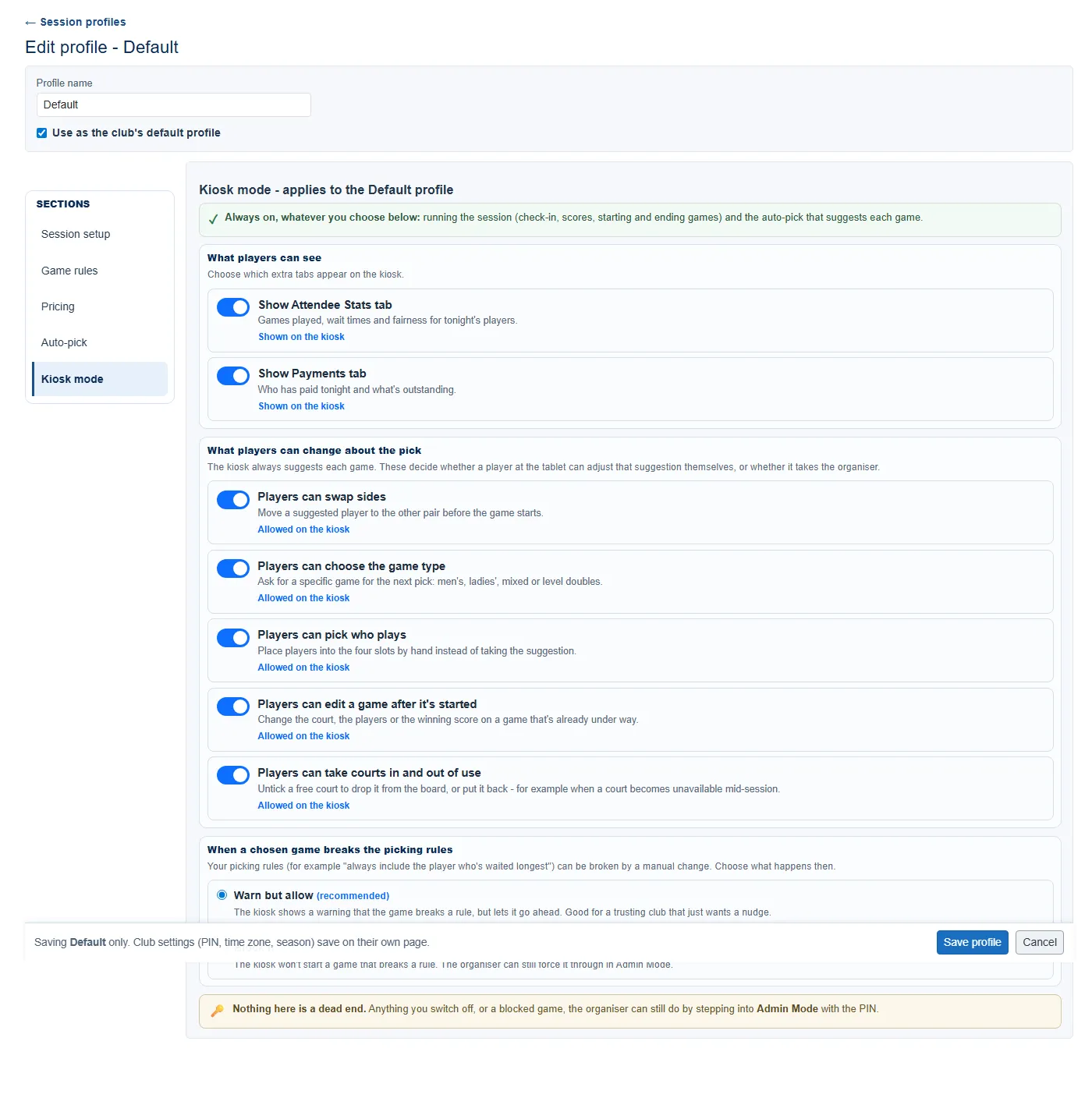
A reassurance strip at the top spells out what stays on no matter what you choose (running the session and the auto-pick). Below it:
- What players can see - Show Attendee Stats tab and Show Payments tab. Both start out shown. Turn one off to keep it organiser-only on the kiosk. Worth knowing for Payments: while that tab is showing, a player can record and edit payments from it, so hiding the tab is also how you keep the payment controls to organisers.
- What players can change about the pick - the kiosk always suggests each game; these decide whether a player at the tablet can adjust that suggestion, or whether it takes an organiser:
- Players can swap sides - move a suggested player to the other pair before the game starts.
- Players can choose the game type - ask for a men’s, ladies’, mixed or level-doubles game for the next pick.
- Players can pick who plays - place players into the four slots by hand instead of taking the suggestion. This one also covers special requests and sticky pairs.
- Players can edit a game after it’s started - change the court, the players or the winning score on a game that’s already under way. (Entering or fixing the score on a live game is always available, whatever this is set to.)
- Players can take courts in and out of use - for example when a court becomes unavailable mid-session. There’s no button for this on the board itself: tap the lock-marked settings cog, which opens read-only on a kiosk, and the per-court in-use tick is the one thing still live in there. Untick a free court to drop it from the board, or tick it to put it back. Adding, removing or renaming courts outright needs Admin Mode.
- Each one shows its current state under the toggle: Allowed on the kiosk or Needs Admin Mode. All five start out allowed on the kiosk - a player at the tablet can reshape the pick out of the box. Turning one off is what moves it behind Admin Mode, which is what to do if you’d rather a player couldn’t quietly bias who they play.
- When a chosen game breaks the picking rules - if someone builds a game by hand that breaks one of your rules (for example “always include the player who’s waited longest”):
- Warn but allow (recommended) - the kiosk shows a warning but lets the game go ahead.
- Block it - the kiosk won’t start a rule-breaking game; an organiser can still force it through in Admin Mode.
If you switch something off (or choose Block it) but haven’t set a PIN yet, ePegboard shows a caution - without a PIN there’s no way into Admin Mode to reach it.
The organiser PIN
Section titled “The organiser PIN”The organiser PIN is one 4 to 8 digit code per club. It does two jobs: it’s what you enter to step into Admin Mode in kiosk mode, and - independently of kiosk mode - it’s how a forgotten PIN is reset (any signed-in club admin can change it).
Open Settings. On the Club settings card, the Organiser PIN is the first section.
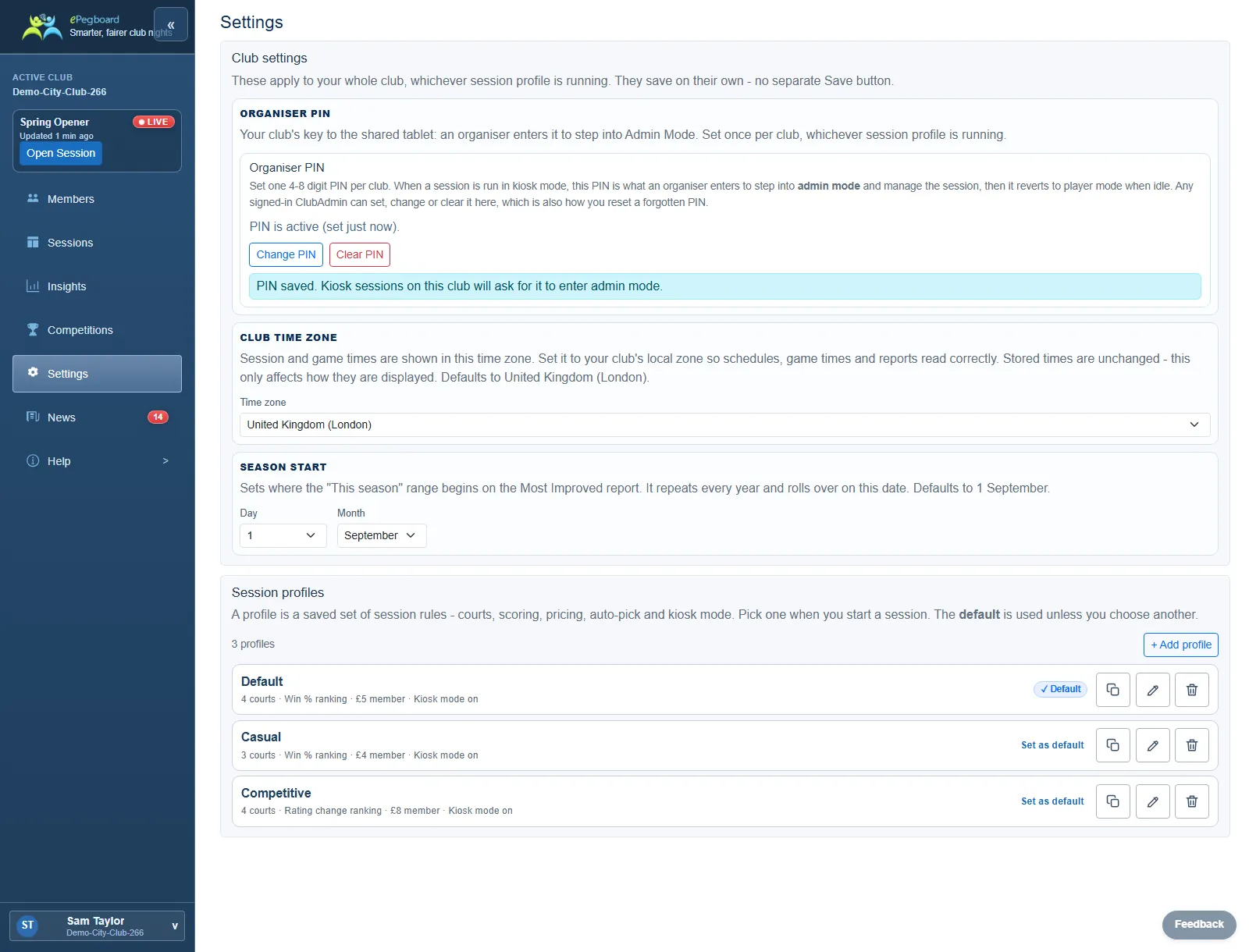
- Set PIN - enter a 4 to 8 digit code (digits only) and Save PIN.
- Once set, the section shows PIN is active with Change PIN and Clear PIN buttons.
- Clear PIN removes it. Kiosk mode will then have no PIN to step into Admin Mode with, so set a new one before you next run a kiosk.
Any signed-in club admin or owner can set, change or clear the PIN. (Some board prompts call this the kiosk PIN - it’s the same code.)
Editing a completed game on the kiosk
Section titled “Editing a completed game on the kiosk”Under kiosk mode, editing or voiding a game that has already finished is always organiser-only - the Edit and Void buttons on the Completed Games tab show as locked until you step into Admin Mode. This protects the record from a stray tap while still letting an organiser fix a genuine mistake. It only affects finished games; entering or fixing the score on a game that’s still on court is never gated. See Correct a score or void a game for what Edit and Void do.
Who can do what
Section titled “Who can do what”- Turning full screen on and off: anyone using the board.
- Running the session on the kiosk - check in, start and score games, void a game that’s on court, free a court, order the queue, trigger the auto-pick, and record payments while the Payments tab is showing: anyone at the tablet (player mode).
- Starting kiosk mode, stepping into Admin Mode, and stopping kiosk mode: needs the organiser PIN (so, an organiser).
- Setting, changing or clearing the PIN: club admins and owners, in Settings.
- Configuring the per-profile Kiosk mode choices: club admins and owners, in the profile settings.
- Set up your session profiles - where the per-profile Kiosk mode choices live.
- Entering scores - the winner-first flow players use on the board.
- Correct a score or void a game - the actions Admin Mode protects on the kiosk.
- Run your first club night - the full walkthrough.