
Entering scores
When a game ends, someone records the result. ePegboard uses a winner-first two-step that is quick to tap on a shared tablet, and lets each club choose where that happens - a calm side panel, or a popup the moment the game finishes.
This page is about recording the score as the game finishes. To fix a score after it is in, see Correct a score or void a game.
The winner-first two-step
Section titled “The winner-first two-step”However the score entry appears, it works the same way:
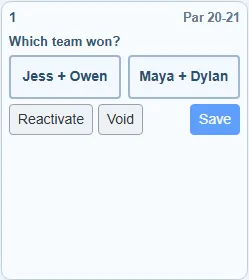
Step 1 - Which team won? The card asks Which team won? and shows the two teams as buttons. Tap the team that won.
Step 2 - enter the scores. Once you pick the winner, the two teams appear as rows, with the winner tagged won. Tap Tap to enter on each row and choose the score from the grid (it highlights the likely range, and you can type the number too). Tap Save.
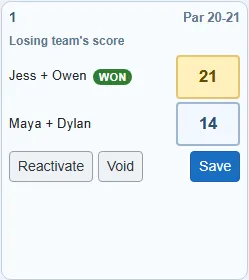
Winner-first means a mis-tap can’t accidentally record the wrong team as winning: you commit the winner first, then the scores just fill in who scored what. If a score is below the game-over mark, ePegboard checks with a “This score does not reach game-over or cap. Save anyway?” prompt. Saving the score is what updates everyone’s rating.
Choose where the score is entered
Section titled “Choose where the score is entered”Each club picks how the score entry shows up, in the session profile’s Game Rules under Score entry. It is a per-profile setting, so different session types can behave differently.
| Option | What happens |
|---|---|
| Side panel (default) | A finished game drops into the side panel and waits. You can start the next match straight away and enter the score when you get a moment. Keeps the courts moving. |
| Popup when a game finishes | A score dialog opens the moment a game finishes (headed Game just finished), so nothing gets forgotten. If you are not ready, tap Postpone and the game waits in the side panel just like the default. |
Side panel keeps the courts moving - a finished game waits in the side panel so you can start the next match straight away and enter the score when you get a moment. Popup asks for the score the moment a game finishes, so nothing gets forgotten - with a Postpone button if you’re not ready.
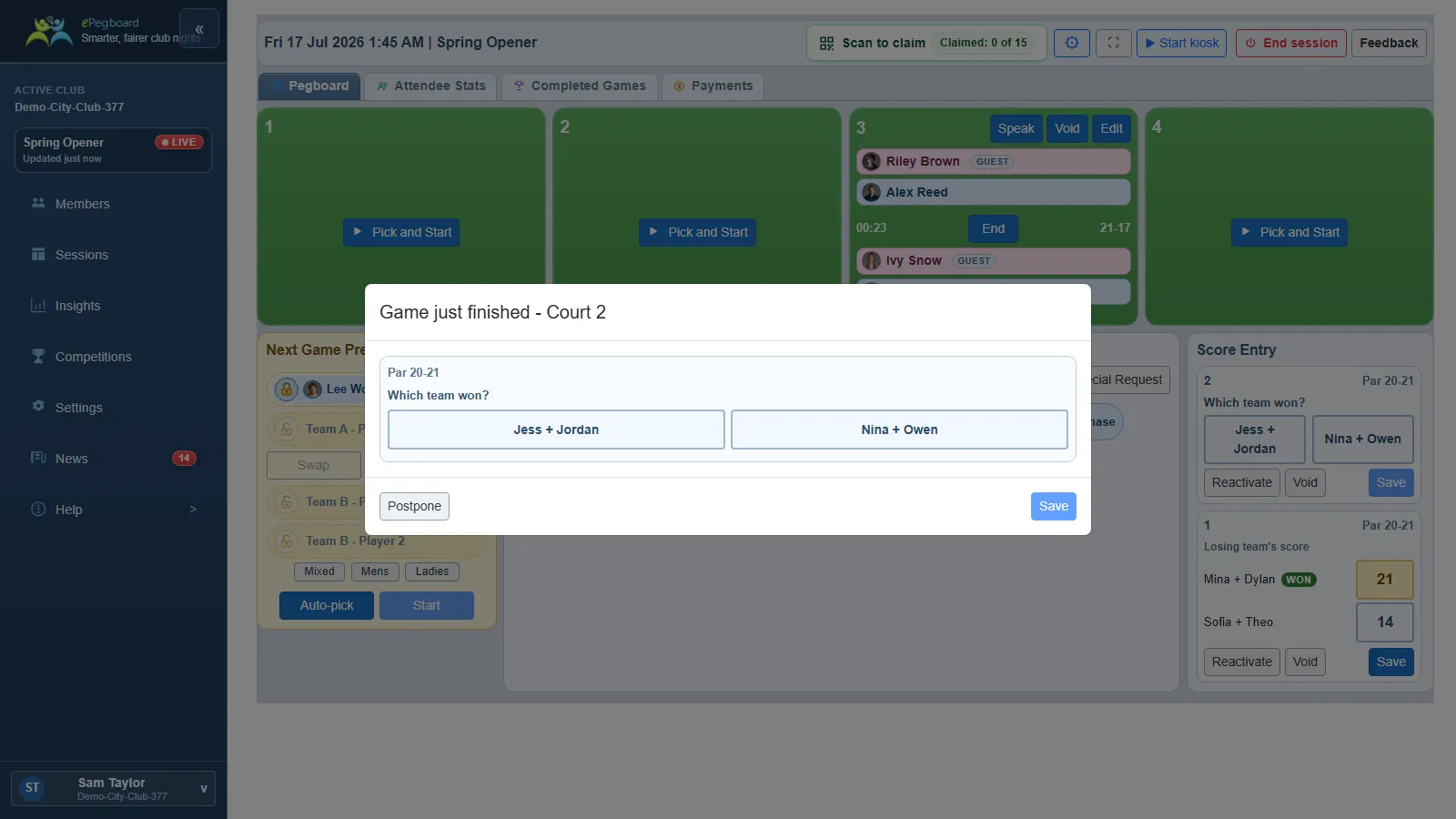
Both options use the exact same winner-first two-step above - the only difference is whether the score comes to you as a popup or waits in the side panel. To change it, edit the session profile (or the live session’s settings for this night only) - see Set up your session profiles and Sessions.
Good to know
Section titled “Good to know”- A game with no score yet stays in the side panel until you enter one - it is never lost. From there you can also Reactivate it (send it back to the court) or Void it.
- On a shared tablet in kiosk mode, players can enter scores in player mode - that is the point. Whether a finished game can then be edited or voided is governed separately by the “Editing a completed game” setting.
- Correct a score or void a game - fixing a result after it is recorded.
- Sessions - the session board and its settings.
- How ratings work - why the score you save changes ratings.